USB-C docking station or hub: which one does your laptop need?
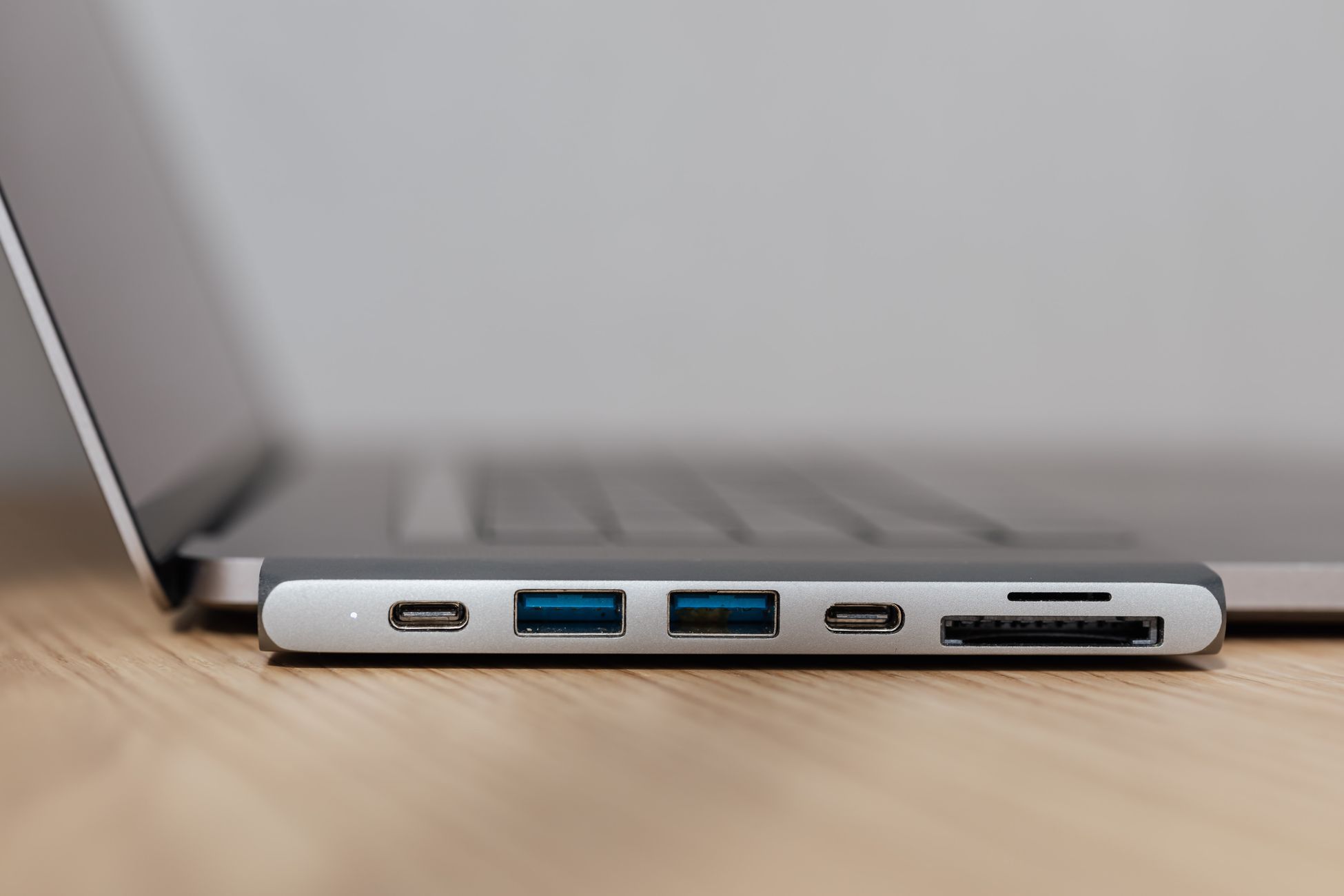

Your laptop has two USB-C ports, and you want a monitor, a keyboard, a wired network cable and the charger plugged in at the same time. A laptop hub or a docking station will solve that. The right choice depends on three things: how many screens you run, whether the laptop mostly lives on one desk, and what its USB-C port can actually carry.
For most people with one monitor and a bag they carry daily, a hub is enough. If you want two external displays, one cable to connect everything when you sit down, and the laptop charging the whole time, a dock is worth the extra size and cost.
A hub travels, a dock stays on the desk
A USB hub with a USB-C plug is a small adapter, usually on a short attached cable, that draws its power from the laptop. A typical one adds a few USB-A ports, an HDMI output and an SD card reader. Many also have a USB-C input for your charger, which passes power through to the laptop while the hub is in use.
A docking station for a laptop is a bigger box with its own power adapter. It charges the laptop over the same single cable that carries data and video, and it usually offers more of everything: several USB ports, Ethernet, an audio jack and often two or more display outputs. You plug in one cable when you arrive and unplug it when you leave.
The labels blur in shops. Some products sold as docks are really bus-powered hubs in a larger case. Judge by two things on the spec sheet: whether it comes with its own power supply, and how many displays it can drive at once.
Side by side: what each one usually offers
The table shows the usual design of each type. Individual models vary, so treat it as a starting point and confirm the details for the one you're considering.
| Attribute | USB-C hub | Docking station |
|---|---|---|
| Power source | The laptop's port | Its own power adapter |
| Charges the laptop | Only with your charger plugged into it | Yes, over the single cable |
| External displays | Usually one | Often two or more |
| Ports | A handful | Many, often including Ethernet and audio |
| Portability | Fits in a pocket or laptop sleeve | Meant to stay on a desk |
| Desk setup | Charger and hub are separate connections | One cable to connect everything |
Your laptop's USB-C port sets the limits
USB-C describes the shape of the connector, not what travels through it. One laptop's USB-C port may carry Thunderbolt data, two 4K displays and charging power, while another's handles data only. Before you buy, look up your laptop's specifications and find out three things about the port:
- Whether it supports Thunderbolt or USB4, which many multi-monitor docks need to reach their full abilities
- Whether it outputs video, often listed as DisplayPort Alt Mode and sometimes marked with a small DisplayPort logo next to the port
- Whether it accepts charging, usually listed as USB Power Delivery
Many Thunderbolt docks still work when plugged into a plain USB-C port, but often with fewer displays or slower data. That's a common reason a dock seems to underperform: the dock is fine, the port is the bottleneck.
Check the wattage of the charger that came with your laptop and choose a dock that supplies at least that much. USB hubs with power passthrough keep some of the incoming power for themselves, so as a rough guide expect the laptop to receive somewhat less than your charger is rated for. A thin laptop rarely notices; a laptop working hard on a long video export may charge slowly.
Gaming and workstation laptops that ship with large barrel-plug chargers are a special case. Many draw more power than USB-C can deliver to them. With these, use a dock or hub for ports and displays, and keep the original charger plugged in.
Monitors decide more than port counts do
If you buy a docking station with HDMI to drive a 4K monitor, check the HDMI version. HDMI 1.4 tops out at 30 frames per second at 4K, which makes the mouse pointer feel sluggish. HDMI 2.0 or later handles 4K at 60 Hz. Some cheaper hubs list ‘4K’ without mentioning that limit, so look for the refresh rate next to the resolution.
Two monitors are where Windows and Mac part ways. On Windows, many USB-C docks drive two screens from one connection using a feature called Multi-Stream Transport. macOS doesn't support it, so on a Mac those two outputs show the same image. Mac owners need a Thunderbolt dock with separate display outputs, or a dock that uses DisplayLink. Some MacBooks with base Apple silicon chips also support fewer external displays than their ports suggest, so check Apple's specifications for your exact model before buying a multi-monitor dock.
DisplayLink docks get around most laptop limits by sending video as compressed data and decoding it with driver software. They work well for spreadsheets, email and browsing, and they let older laptops without video over USB-C run extra screens. They can struggle with fast motion and some protected streaming video, and you have to keep the driver installed and updated, which some company IT departments don't allow.
Which one fits the way you work
Once you know what your port supports, the choice usually sorts itself by situation:
- Travelling or moving between desks: a compact hub with HDMI and power passthrough covers hotel TVs, conference rooms and a borrowed monitor.
- One desk, one monitor: either works; pick a dock if plugging in a single cable each morning is worth the price to you.
- Two or more monitors: a Thunderbolt or USB4 dock matched to your laptop's port, or a DisplayLink dock if the port can't drive two screens.
- Mac laptops: a Thunderbolt dock, after checking how many displays your model supports.
- Gaming laptops: a hub or dock for ports only, with the original charger handling power.
Keep the cable that comes with your dock or hub. Many USB-C cables sold separately carry only USB 2.0 data and no video, so swapping in a random cable from a drawer can make a working dock suddenly lose its monitors.